
Accurate time synchronization is critical in enterprise environments. Many systems such as SIEM platforms (e.g., Splunk), security logs, authentication systems, and domain controllers rely on consistent timestamps for proper correlation and analysis.
In this guide, we will configure Network Time Protocol (NTP) settings using Group Policy (GPO) to ensure all Windows machines synchronize their time with reliable Indian NTP pool servers.
This configuration will:
✔ Synchronize system time across domain machines
✔ Prevent log timestamp mismatches
✔ Improve log correlation in SIEM tools like Splunk
✔ Maintain consistent security auditing and authentication events
⚙️ Step 1: Configure Windows NTP Client via Group Policy
📍 Path
→ Policies
→ Administrative Templates
→ System
→ Windows Time Service
→ Time Providers
Configure the following policy:
🔧 Configure Windows NTP Client
-
Open Configure Windows NTP Client
-
Set policy to Enabled
Configure these parameters:
| Setting | Value |
|---|---|
| NtpServer | 0.in.pool.ntp.org,1.in.pool.ntp.org,2.in.pool.ntp.org,3.in.pool.ntp.org |
| Type | NTP |
| ResolvePeerBackoffMaxTimes | 4 |
Leave all other settings as default.

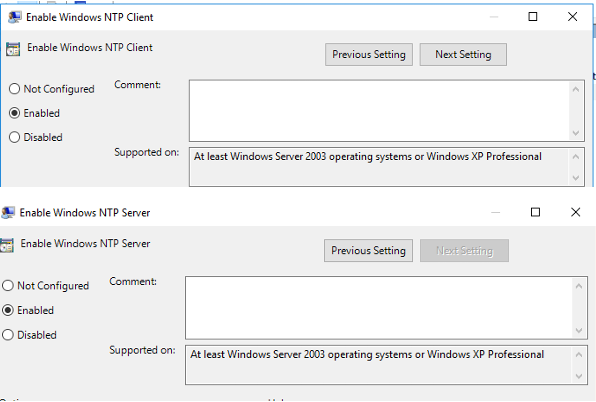
🖥 Also Enable These Policies
Enable the following:
✔ Enable Windows NTP Client
✔ Enable Windows NTP Server
This ensures the system can both synchronize time and serve time if required.
🧭 Step 2: Configure Time Zone Using GPO Registry Preferences
To enforce the correct Indian Standard Time (IST) across all machines, we configure registry settings through GPO.
📍 Path
→ Preferences
→ Windows Settings
→ Registry
Create a Registry Collection
-
Right click Registry
-
Select New → Collection Item
-
Name it:
Now add the following Registry Items inside this collection.
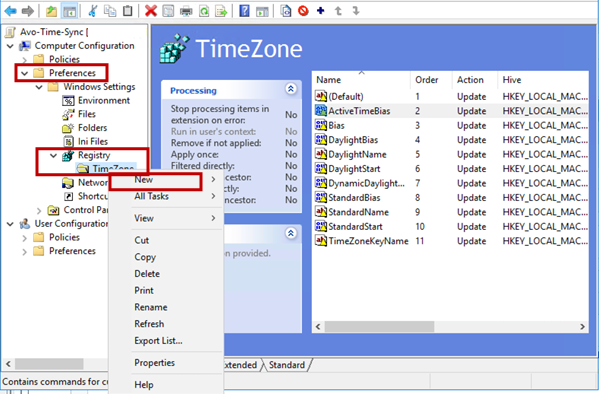
🗂 Registry Configuration for Time Zone
All registry entries use the following base path:
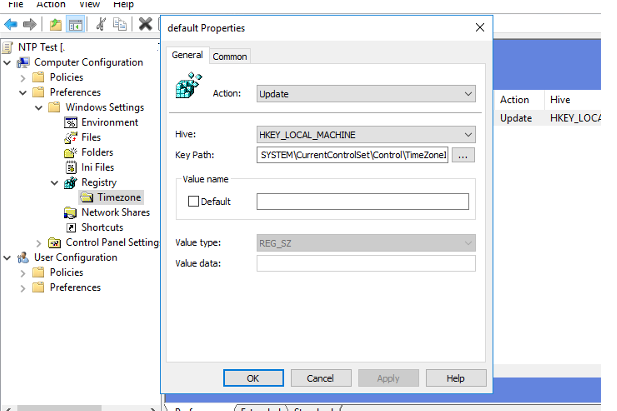
1️⃣ Default Registry Entry
⚙ Configuration
| Setting | Value |
|---|---|
| Action | Update |
| Hive | HKEY_LOCAL_MACHINE |
| Key Path | SYSTEM\CurrentControlSet\Control\TimeZoneInformation |
| Value Type | REG_SZ |
2️⃣ ActiveTimeBias
| Setting | Value |
|---|---|
| Action | Update |
| Hive | HKEY_LOCAL_MACHINE |
| Value Name | ActiveTimeBias |
| Value Type | REG_DWORD |
| Value Data | 0xFFFFFEB6 (4294966966) |
3️⃣ Bias
| Setting | Value |
|---|---|
| Action | Update |
| Hive | HKEY_LOCAL_MACHINE |
| Value Name | Bias |
| Value Type | REG_DWORD |
| Value Data | 0xFFFFFEB6 (4294966966) |
4️⃣ DaylightBias
| Setting | Value |
|---|---|
| Action | Update |
| Hive | HKEY_LOCAL_MACHINE |
| Value Name | DaylightBias |
| Value Type | REG_DWORD |
| Value Data | 0x0 (0) |
5️⃣ DaylightName
| Setting | Value |
|---|---|
| Action | Update |
| Hive | HKEY_LOCAL_MACHINE |
| Value Name | DaylightName |
| Value Type | REG_SZ |
| Value Data | @tzres.dll,-491 |
6️⃣ DaylightStart
| Setting | Value |
|---|---|
| Action | Update |
| Hive | HKEY_LOCAL_MACHINE |
| Value Name | DaylightStart |
| Value Type | REG_BINARY |
| Value Data | 00000000000000000000000000000000 |
7️⃣ DynamicDaylightTimeDisabled
| Setting | Value |
|---|---|
| Action | Update |
| Hive | HKEY_LOCAL_MACHINE |
| Value Name | DynamicDaylightTimeDisabled |
| Value Type | REG_DWORD |
| Value Data | 0x0 (0) |
8️⃣ StandardBias
| Setting | Value |
|---|---|
| Action | Update |
| Hive | HKEY_LOCAL_MACHINE |
| Value Name | StandardBias |
| Value Type | REG_DWORD |
| Value Data | 0x0 (0) |
9️⃣ StandardName
| Setting | Value |
|---|---|
| Action | Update |
| Hive | HKEY_LOCAL_MACHINE |
| Value Name | StandardName |
| Value Type | REG_SZ |
| Value Data | @tzres.dll,-492 |
🔟 StandardStart
| Setting | Value |
|---|---|
| Action | Update |
| Hive | HKEY_LOCAL_MACHINE |
| Value Name | StandardStart |
| Value Type | REG_BINARY |
| Value Data | 00000000000000000000000000000000 |
1️⃣1️⃣ TimeZoneKeyName
| Setting | Value |
|---|---|
| Action | Update |
| Hive | HKEY_LOCAL_MACHINE |
| Value Name | TimeZoneKeyName |
| Value Type | REG_SZ |
| Value Data | India Standard Time |
🔧 Step 3: Configure Windows Time Service
Now ensure the Windows Time Service (W32Time) is configured and running.
📍 Path
→ Preferences
→ Control Panel Settings
→ Services
Create a New Service Configuration
Right click Services → New → Service
Configure the following:
| Setting | Value |
|---|---|
| Service Name | W32Time |
| Startup Type | Automatic |
| Service Action | Start Service |
This ensures the Windows Time Service always runs on system startup.

🔍 Why This Configuration is Important
Proper time synchronization provides several critical benefits:
🔐 Security & Authentication
Kerberos authentication in Active Directory requires synchronized system time.
If time drift exceeds 5 minutes, authentication failures may occur.
📊 SIEM Log Correlation (Splunk)
Security monitoring tools like Splunk rely on timestamps to correlate events.
Incorrect system time can cause:
-
❌ Incorrect alert timelines
-
❌ Missed correlations
-
❌ Incident investigation issues
With centralized NTP configuration, all logs maintain consistent timestamps.
🖥 Operational Stability
Consistent system time ensures reliable operation of:
-
Active Directory
-
Scheduled Tasks
-
Certificates
-
Authentication logs
-
Security monitoring
🏁 Conclusion
By configuring NTP synchronization and time zone settings via Group Policy, organizations can ensure all domain systems maintain accurate and consistent time.
This configuration improves:
✔ Security logging
✔ SIEM log analysis
✔ Authentication reliability
✔ System stability
Centralized management through GPO also simplifies administration and ensures uniform configuration across the entire domain.
✅ Recommended For
-
Enterprise Windows environments
-
SOC / SIEM deployments
-
Splunk log monitoring setups
-
Security compliance frameworks
If you are still facing an issue, feel free to Ask Doubts in the Comment Section Below and Don’t Forget to Follow us on 👍 Social Networks.
| Happy Splunking 😉