Introduction
A strong password policy is one of the most fundamental layers of security for any organization. Windows Server allows administrators to enforce password rules domain-wide through the Group Policy Management Editor (GPME) — meaning the rules apply automatically to every user on the domain. In this guide, we will configure exactly that.
🔍 Why Does Password Policy Matter?
🔐 Brute Force Protection: Short or simple passwords are easily cracked. A minimum length policy significantly reduces this risk.
🔄 Regular Password Rotation: Password age limits ensure users change their credentials regularly, reducing the window for exploitation.
🏢 Regulatory Compliance: Standards like ISO 27001 and PCI-DSS mandate strong password policies for certified organizations.
👁️ Insider Threat Control: Preventing password reuse limits the risk of unauthorized access from old or stolen credentials.
⚙️ Step 1: Configure Password Policy Settings
Open the Group Policy Management Editor and navigate to the following path:
📂 Computer Configuration → Policies → Windows Settings → Security Settings → Account Policies → Password Policy
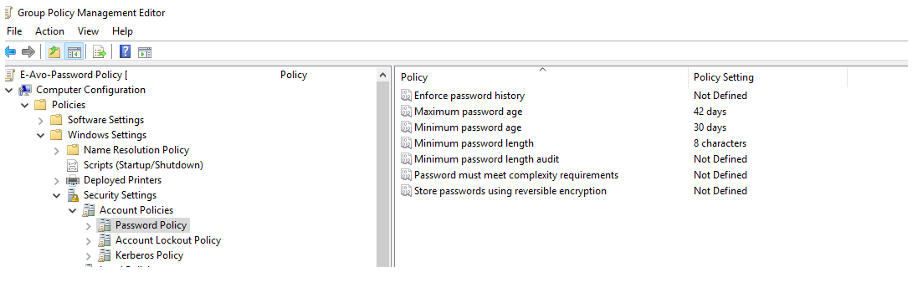
📋 Configure the following policy values:
| Policy | Description | Value |
| ⏳ Maximum Password Age | How many days before the password expires | 42 Days |
| 🕐 Minimum Password Age | Days a user must wait before changing again | 30 Days |
| 📏 Minimum Password Length | Minimum number of characters required | 8 Characters |
💡 Tip: The minimum age of 30 days prevents users from immediately changing their password back to the old one right after being forced to update it — making your password history policy actually effective.
🔔 Step 2: Warn Users Before Password Expiry
Next, configure the system to notify users ahead of their password expiring. Navigate to:
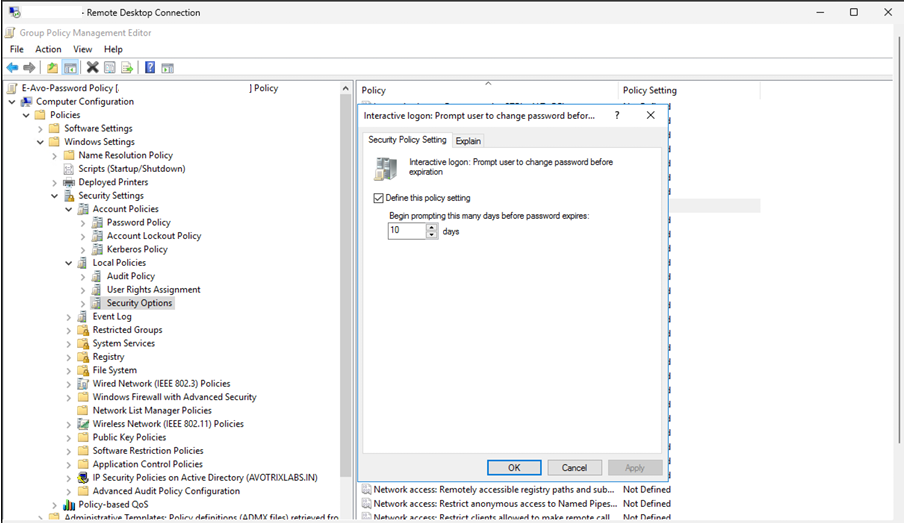
📂 Local Policies → Security Options → Interactive logon: Prompt user to change password before expiration
| Policy | Description | Value |
| 🔔 Prompt Before Expiration | Days before expiry the user receives a warning popup | 10 Days |
🖱️ How to apply this setting:
- Double-click the policy in Security Options.
- Check the “Define this policy setting” checkbox to activate it.
- Enter “10” in the days field — users will be notified 10 days before expiry.
- Click OK → Apply to save the setting.
🖥️ Step 3: Lock Screen Display Setting
Finally, configure what user information is displayed when a session is locked. This is also found under Security Options:
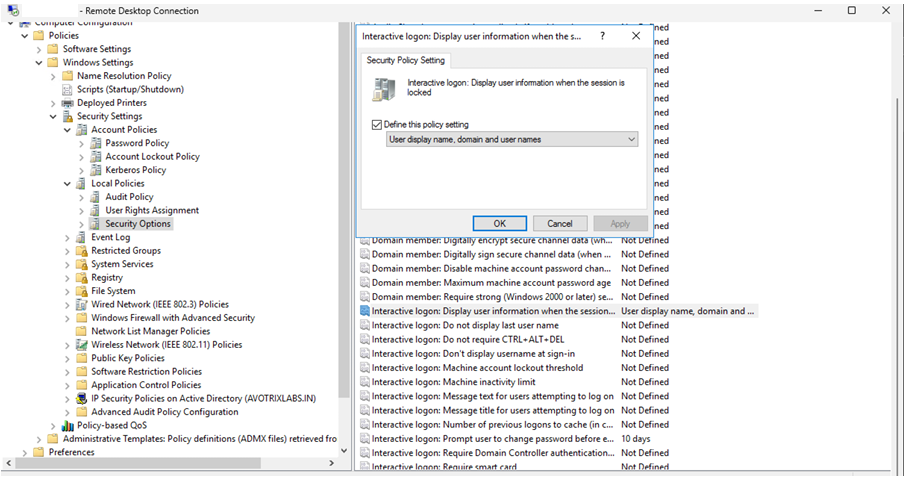
📂 Security Options → Interactive logon: Display user information when the session is locked
| Policy | Description | Value |
| 👤 Display user info on lock screen | What is shown when the session is locked | User display name, domain and user names |
✅ Summary: All Settings at a Glance
| Policy Name | Value |
| ⏳ Maximum Password Age | 42 Days |
| 🕐 Minimum Password Age | 30 Days |
| 📏 Minimum Password Length | 8 Characters |
| 🔔 Prompt Before Expiration | 10 Days |
| 👤 Lock Screen Display | Username + Domain |
If you are still facing an issue, feel free to Ask Doubts in the Comment Section Below and Don’t Forget to Follow us on 👍 Social Networks.
| Happy Splunking 😉