Overview
Monitoring and collecting event data from Active Directory computers is essential for security analysis and system administration.
In this blog, we’ll walk you through the complete process of setting up Windows Remote Management (WinRM) for centralized event collection across your AD environment. We’ll cover everything from initial WinRM configuration, permission setup, creating event subscriptions, to filtering and troubleshooting event collection.
Follow the step-by-step instructions below to implement a robust event forwarding system.
1. Open PowerShell on the Source Machine (MSEDGEWIN10):
Command :- winrm quickconfig

Set-Item wsman:localhost/client/trustedhosts
– Restart the service for changes to take effect: Command: –
Restart-Service WinRM

Command :- winrm get winrm/config

• AllowRemoteAccess = true signifies that the service is running.
Test if the Collector Machine (BOSSMANBEN) is reachable using WinRM:
Command :- Test-WSMan WIN-BO2CT95INDP
NOTE(S):
• WinRM is enabled by default on Windows Server 2012 and up.
• This is just a measure to check if the Collector Machine is indeed reachable.

• In the Source Machine :
i. Open the Local Users and Groups:
▪ Press Win + R then enter lusrmgr.msc
ii. Navigate to Local Users and Groups (Local) > Groups:
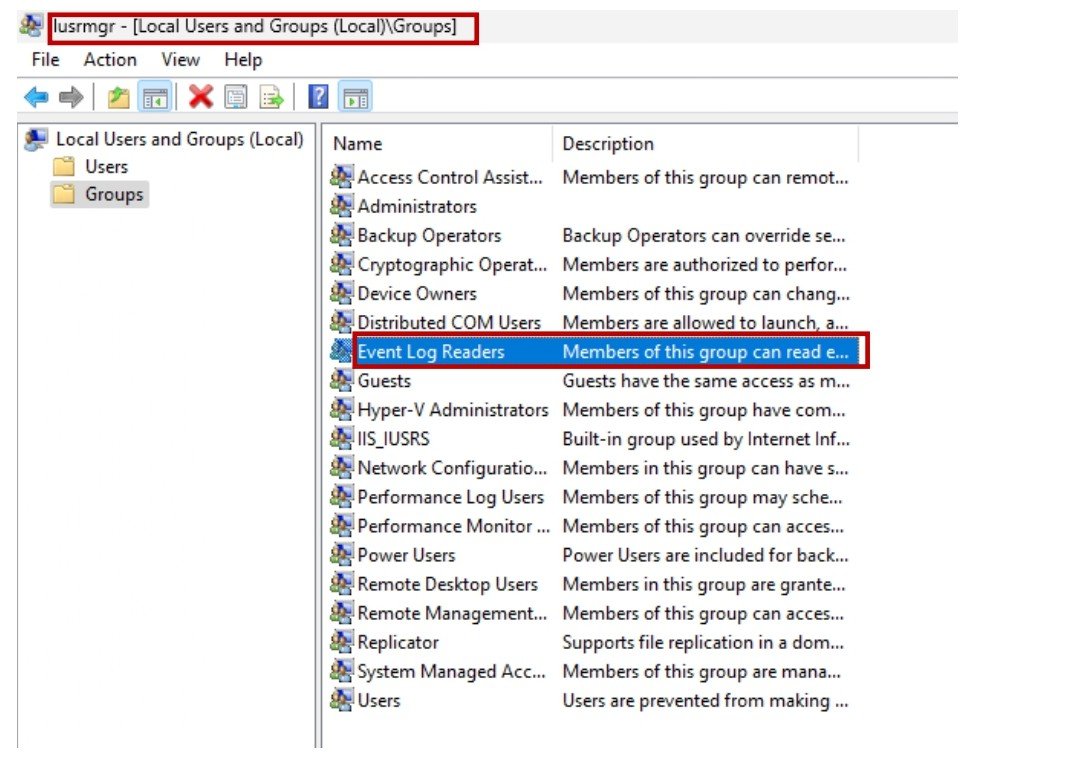

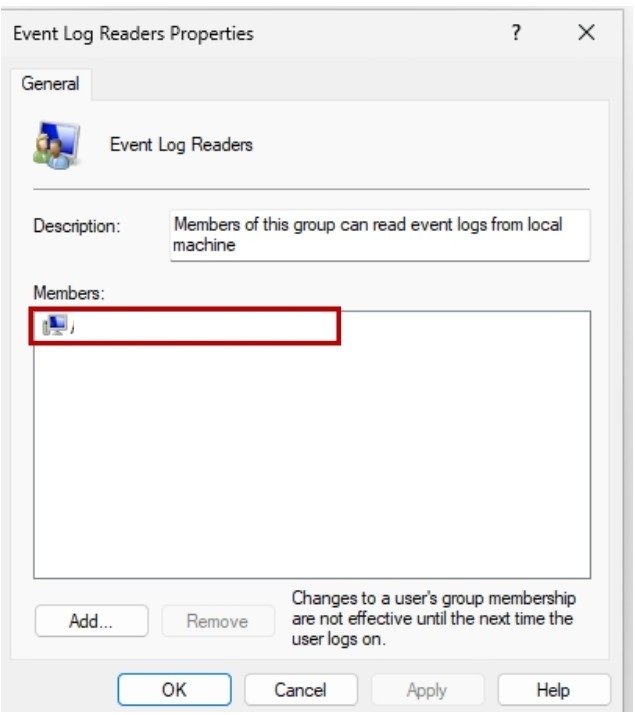
• Select Object Types… then check the box, Computers
• Enter the object names to select – <Collector Machine>
NOTE(S):
– Select Check Names for good measure.
– Select OK when done.
In the Collector Machine (WIN-BO2CT95INDP):
• Open the Event Viewer:
Press Win + R then enter gpedit eventvwr.msc
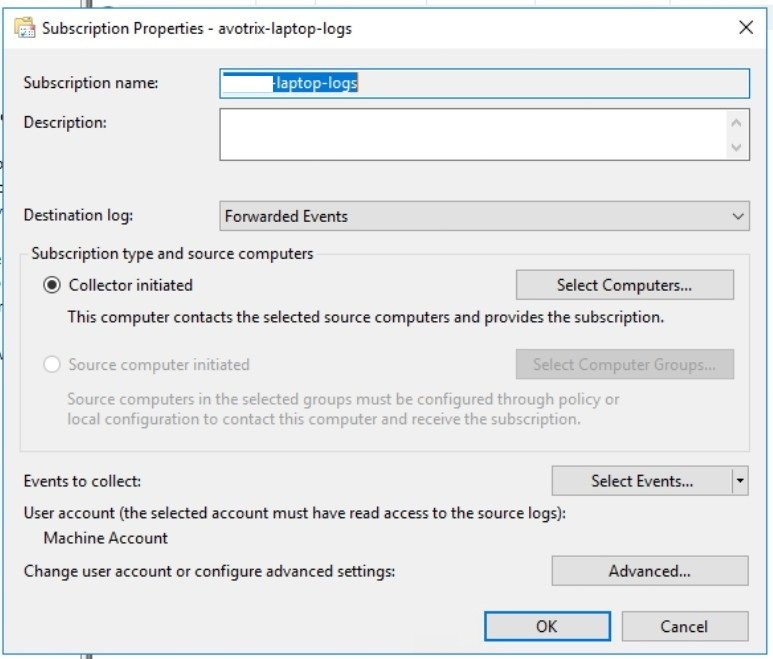
• On the left panel, right-click on Subscriptions then select Create Subscription
Subscription Name —
Description —
Destination log —
NOTE(S):
Custom logs could be created but Forwarded Events is selected by default.
Click here to create custom logs.
Select Subscription type and source computers:
i. If you choose Collector initiated then select Select Computers.
. Select Add Domain Computers…
a. Enter the object name to select – source machine
b. Select Check Names for good measure.
c. Select OK
d. Select Test for good measure.
e. Select OK
ii. If you choose Source initiated then select Select Computer Groups.
. Select Add Domain Computers…
a. Enter the object name to select – source macine
b. Select Check Names for good measure.
c. Select OK
d. Select Test for good measure.
e. Select OK
Here we create source subscription.

a. Press Win + R then enter gpedit.msc
b. Navigate to Computer Management > Administrative
Templates > Windows Components > Event Forwarding
c. Right-click on Configure target Subscription Manager then select Edit
d. Choose Enabled
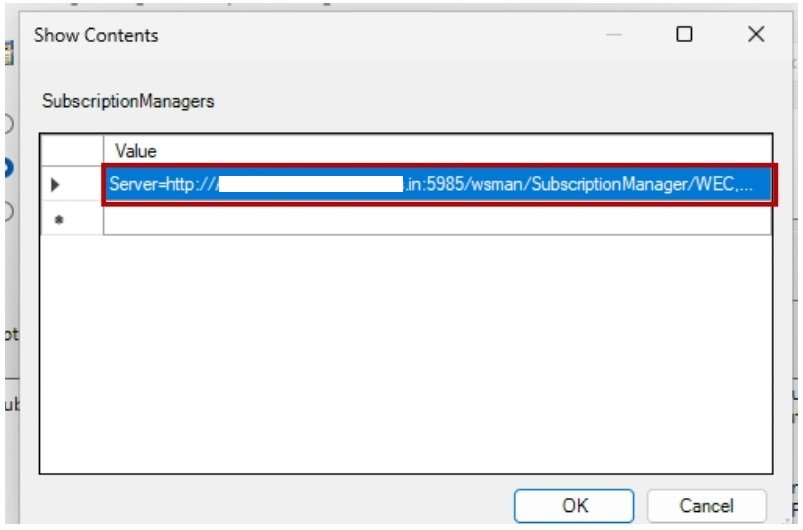
e. Under Options, beside SubscriptionManagers, press Show.

Server=http://Alabs.in:5985/wsman/SubscriptionManager/WEC,Refresh=30
Press OK
Press OK

Open PowerShell or cmd then run wecutil quick-config

a. Logged — “Any time”
b. Event level — Critical, Error, Information, Warning
c. Choose By log — Windows -> Security
d. Filter Event IDs —
4624,4657,4688,4698,4720,4722,4724,4732,4738,4769
e. Select OK
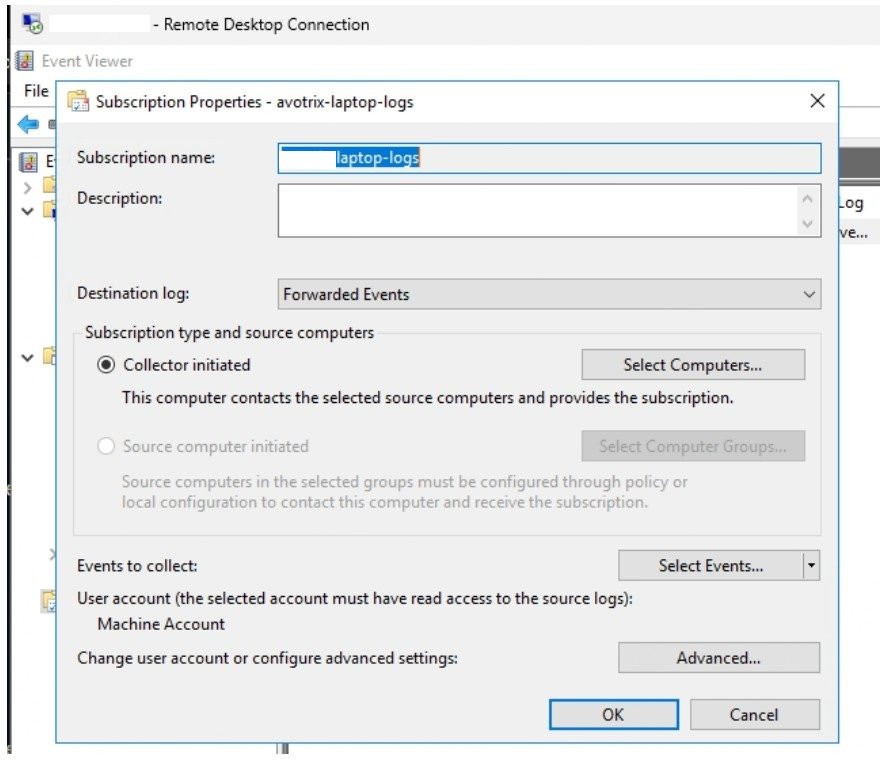

a. User Account —
b. Event Delivery Optimization —
c. Select OK
• Select OK


• Run wevtutil: wevtutil get-log Security
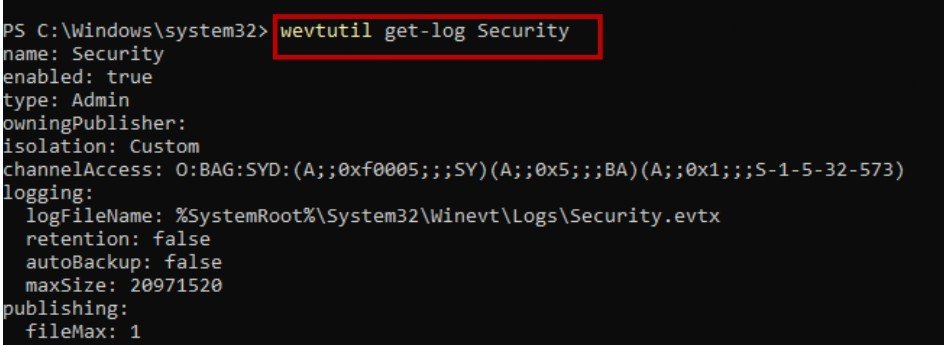

• WinRM runs under the Network Service Account which had no access to
the Security Logs
Going back to the Collector Machine :
• Go to the Event Viewer:
a. Press Win + R then enter gpedit eventvwr.msc
• On the left panel, go to Subscriptions then select the recently created
subscription
• On the right panel, under the subscription name, select Retry
• Right-click on the recently created subscription then select Runtime Status:
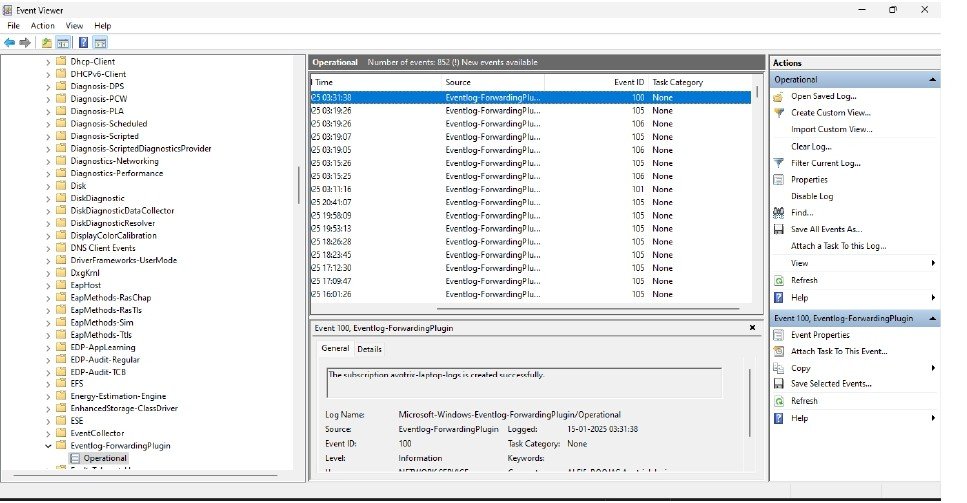
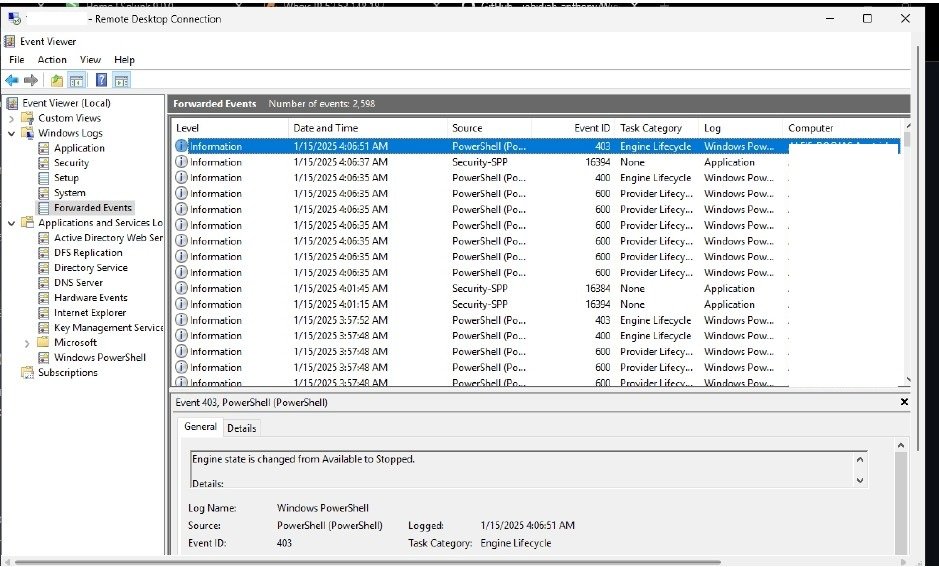
Windows-Event-ForwardPlugin/Operational in the Source Machine
| Happy Splunking 😉